E-on Software Announces Availability of LumenRT 4.1 Studio

E-on Software released a new version of LumenRT 4.1 Studio adding extended capabilities for large MicroStation models and Revit export. The new version adds several important improvements including; New animated water materials – ocean, sea, lake, pond; Export of point lights from Revit and more. Read more ...

Southpaw Technology releases Tactic 4.0

Southpaw Technology has updated Tactic, its recently open-sourced asset and project-management system. Version 4.0 of the software focuses on ease of pipeline integration, improving database connectivity, adding a new plugin architecture, and adding HTML5 theming to enable studios to skin Tactic to match in-house tools. Find out more..

CG Artist Reference: Drawing From Reference Improves Skill and Productivity

Drawing from reference of some type is highly encouraged when in art school, and really by all established artists.  Reference can be photographic or live, and when used properly it becomes a tool that enhances productivity and the skill of an artist. Find out more..

MODO 701 Service pack is out

Not long after releasing MODO 701 comes first service pack. It fixes many bugs, so really necessary to download it. Find out more..

FurryBall3 – price for EDU version is reduced

Edu licence has no limits, EDU user just agrees with non-commercial use ONLY. Iit is valid one YEAR and include ALL free updares, upgrades and LOWER PRIORITY support. One student can purchase only ONE licence. Multilicence is available only for School institutions. Price is 99€. Find out more..

  • 0
  • 1
  • 2
  • 3
  • 4

Photoshop

Print

Creating the floating-castle using Photoshop

Written by Administrator.

Created on Wednesday, 06 March 2013 17:54

Creating the floating-castle using Photoshop

In the tutorials before I already showed that the options of Photoshop are almost unlimited and that these options are only bounded by your imagination. To proceed with this I decided to create a tutorial where we will create a floating castle by manipulating and merging multiple images together. Although we already were merging different images together this one is a bit different. The difference consist in the art how we will proceed. The first step is of course the idea of the final image and this step is also very important. The initial condition which we will set for the final image will also guide our workflow. Our idea is to create a floating castle in a mountain environment and for this we also need the corresponding images to do so. If we choose the images which we could use to create our final image, the Photoshop work will begin. At first we will cut off the castle from the background using some masking technique.

Print

Creating a romantic card using Photoshop

Written by Administrator.

Created on Wednesday, 16 January 2013 15:46

Creating a romantic card using Photoshop

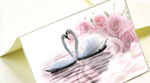
Slowly but for sure the 14th November is coming and with this day also the St. Valentine’s Day. To this occasion I decided to create a romantic card using Photoshop. The initial idea was taken from s stock photo I saw inside a photo library but was not for free, so i decided to create something similar with images you can find on the web. The initial idea was to create the card with a romantic topic, in my case two swans in the shape of a heart are the carriers of this idea. After finding all images we start to edit and merge different parts of the card together. As first we will cut off and mask the swans and place them on another surface. This process will also include some fixes, creating new shadows and also creating new adjustment layers to create the final look of the swans. After this part will be finished we will place some flowers on one side of the card to raise the romantic feeling of the card even more and blend everything together.

Print

Merging two animals together using Photoshop

Written by Administrator.

Created on Sunday, 28 October 2012 15:40

Merging two animals together using Photoshop

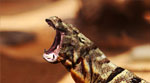
Everyone who used Photoshop for some time knows that the features and the possibilities which are included inside Photoshop are limited just by your imagination. Literally you can do almost everything and these include also some advanced photo manipulations. In this tutorial we will take a closer look on how to merge two images together and create an absolutely new image with a new content. For this purpose i choose two different animals which we will merge together; a lizard and a hippo. The final image should be a transformation of these both animals into a “LizaroHipp” a lizard with the head of a hippo. To be able to do this first we need some reference images. The reference images should have something common to able to merge them. In our case was the main factor the head position and rotation of the hippo. After we will have these images we will start the process of merging and place the hippo head into the image of the lizard on a separate layer.

Print

Reconstructing an old photo using Photoshop

Written by Administrator.

Created on Thursday, 14 June 2012 19:07

Reconstructing an old photo using Photoshop

If you are old enough to remember the days when the cameras where filled with films and not flash cards you also know how vulnerable these photos where. After years they were in a place where you thought they will be fine all the time but suddenly they are damaged. Scratches, dust, sunlight and other factors can damage these photos and so destroy your memories which you wanted to preserve with these photos. In this tutorial I will focus how to reconstruct and breathe back life to these old photos and so bring memories back to life. At first we will clean our reference photo from dust and scratches using both Photoshop filters and brushes.

Print

Creating a hologram effect in Photoshop

Written by Administrator.

Created on Friday, 20 April 2012 07:58

Creating a hologram effect in PhotoshopPhotoshop is not only a great tool for digital painting, retouching or photo manipulation but also a tool with help which you can create any special effect you could imagine. In this tutorial i will focus on creating a hologram interface effect on a stock photo using different tools and brushes. At first i will change a bit the stock photo on which i will later apply the hologram interface and all parts of it. By this i will hide and particularly reconstruct a person finger to my needs by deleting the current object which she is holding.